
If you've ever rolled into your driveway at lunchtime and found the porch light, path lights, and big oak uplight all blazing away in broad daylight, you already know the embarrassment of lighting timer programming mistakes. I've been there — more than once, honestly — and so has nearly every neighbor on my street. Here's the thing I had to learn the hard way: the timer is almost never broken. It's doing exactly what it was told to do. It's the telling that went wrong. One AM where a PM should be, a clock that quietly lost an hour back in March, an override switch flipped for a party and never flipped back — any of these can shift your whole schedule by hours. The good news: nearly every case of lights-on-at-noon traces back to a short list of simple errors, most fixable in under ten minutes once you know where to look. In this guide, I'll walk through the eight mistakes I see most often, how to tell which one you have, a clean step-by-step reset, what replacements honestly cost in 2026, and the twice-a-year checkup that prevents a repeat.

The Short Answer
When your outdoor lights burn at noon, the timer is rarely dead — it's almost always one of a few programming slips. The usual suspects are an AM/PM swap in the schedule, a clock that drifted at a daylight saving change, a dead backup battery that wiped the settings during an outage, or a manual override that never got switched back to AUTO. Check them in that order — mode, clock, meridiem, leftover programs — and you'll usually fix it in ten minutes without spending a dime.
How an Outdoor Timer Actually Works (and Why It Obeys So Badly)
Every timer, from the $12 mechanical dial to the fanciest astronomic in-wall model, has just three parts: a clock, a schedule, and a mode switch. The clock says what time it is. The schedule says when to turn on and off. The mode switch decides whether the timer follows that schedule (AUTO), stays on, or stays off. That's the whole machine. The crucial thing to understand is that a plain timer has no idea whether it's dark outside. It cannot see the sun. It simply compares its clock to its schedule and clicks the relay. So a timer with a wrong clock will produce a wrong schedule with perfect, cheerful obedience — on at noon, off at midnight, every single day, until a human intervenes. Mechanical timers read the schedule from little pins or trippers pushed into a rotating dial. Digital timers store programs electronically and depend on a small backup battery to remember them during outages. Astronomic and smart timers add one extra trick: they calculate sunset from the date and your location, which removes some errors and introduces a couple of new ones. I explain the different timer families in more depth in my guide to outdoor lighting timers and automation, but for fixing a bad schedule, the three-part model above is honestly all you need.

The Most Common Lighting Timer Programming Mistakes at a Glance
Before you touch a single button, play detective for one day. Note what time your lights actually come on and what time they go off, then compare that with what you intended. The size of the error is your biggest clue. Lights off by exactly twelve hours almost always mean an AM/PM swap. Off by exactly one hour points to daylight saving drift or a clock that was set wrong. Lights that ignore the schedule entirely — on around the clock, or never on at all — usually mean a forgotten override or a timer stuck in manual mode. Lights that come on at odd, scattered times after a storm suggest a dead backup battery and a factory-default reset. And a schedule that's close but creeping a little further off each week is the signature of an astronomic timer set to the wrong place or date. Here's the quick-reference version I keep taped inside my own breaker panel:
| Mistake | The symptom | Fix time |
|---|---|---|
| AM/PM swap | Exactly 12 hours off | 5 minutes |
| Clock never set right | Off by a random amount | 5 minutes |
| Daylight saving drift | Exactly 1 hour off, twice a year | 2 minutes |
| Dead backup battery | Flashing 12:00, defaults after outages | 10 minutes |
| Manual override left on | Lights always on or never on | 30 seconds |
| Stacked old programs | Random extra on-times | 10 minutes |
| Photocell conflict | On at noon under shade, off early | 15 minutes |
| Wrong astronomic location | Off by 20–90 minutes, drifts seasonally | 10 minutes |
Work through the eight sections below in order and you'll find yours.

Mistake #1: The AM/PM Swap — the Classic Noon Surprise
This is the champion of all timer errors, and I've committed it myself at least twice. You sit down with your new digital timer at 9 in the evening, happily programming ON at 7 and OFF at 11 — and you never notice the tiny AM dot glowing beside the 7. Congratulations: your lights now run 7 a.m. to 11 a.m., plus whatever the rest of the schedule does, and your yard performs its light show for the mail carrier. The swap is so common because timer displays are genuinely bad at showing it. On many models the AM/PM indicator is a speck in the corner of the screen, and on mechanical dials the day and night halves of the ring are printed in near-identical type. The defense is boring but bulletproof: after programming, scroll back through every single event and say the times out loud, meridiem included. "On at seven P.M., off at eleven P.M." Speaking it forces your eyes to actually check the little dot. Also notice your programming hour — if you're setting the timer up at night, every time you type is more likely to get the wrong half of the day attached to it out of sheer typing momentum. When in doubt, program in the morning, or set the clock first and let the timer's current-time display remind you which half of the day you're standing in.

Mistake #2: The Clock Itself Was Never Right
A perfect schedule riding on a wrong clock is still a wrong schedule, and this mistake is sneakier than the AM/PM swap because everything looks correct on the programming screen. The programs say 7 p.m. to 11 p.m. The timer fires at 7 p.m. — its 7 p.m., which might be your 2:40 in the afternoon. Clocks get set wrong in a few classic ways. The timer was installed at midday, the electrician set the time from memory, and nobody ever checked it against a phone. Or the dial on a mechanical timer was rotated counterclockwise during setup — most dials are meant to turn one way only, and forcing them back can leave the clock misaligned with the trippers by a chunk of an hour. Or the timer lives in an outbuilding on a circuit that got rewired, and its "morning" simply drifted. The fix takes one minute: before you touch any program, compare the timer's clock with your phone. If they disagree, set the clock first, then re-check the schedule. I now make this step zero of every timer job, because I've wasted an embarrassing amount of time "fixing" flawless programs that were innocent all along. Do the check in daylight, phone in one hand and timer in the other, before you change a single program — two minutes of diagnosis beats an hour of reprogramming a clock problem.
Mistake #3: Daylight Saving Time Drift
Twice a year, in March and November, every simple timer in America goes an hour wrong in a single night — and unlike your phone, it never fixes itself. Mechanical timers and basic digital models have no idea daylight saving time exists. So on the Sunday after the spring change, a timer that was perfectly set is suddenly firing an hour late by the clock on your wall. That's only half the problem, though. Sunset is moving at the same time. An ON time of 7 p.m. that matched dusk beautifully in October is full daylight by April even without any clock change, because the sun itself has shifted. The result is a double drift — clock error plus sun error — that sneaks up gradually, which is why so many people discover it as "wait, the lights have been coming on in daylight for weeks." The fix is a habit, not a part: when you change your clocks, walk out to the timer and change that one too, then nudge the ON time toward the new sunset. I tie it to swapping smoke alarm batteries, so I never have to remember it on its own. If the twice-yearly fiddle genuinely annoys you, that's the one honest argument for an astronomic or smart timer, which handles the change by itself.

Mistake #4: The Dead Backup Battery and the Midnight Reset
Digital timers keep their clock and programs alive during a power outage with a tiny internal battery or a capacitor. When that battery dies — and they all do, usually in three to five years — the next outage, even a two-second blink during a thunderstorm, wipes the timer back to factory defaults. The display flashes 12:00, the programs vanish or revert to some default schedule, and your lights start living a strange new life: on at noon, off at dawn, apparently at random. This is the mistake to suspect first whenever a schedule goes haywire right after a stormy week. Capacitor-style timers are even touchier; many hold memory for only a few hours without power. The fix is cheap: replace the little coin or AAA backup cell — usually $3 to $8 — then reprogram from scratch and write the battery's install date on a scrap of painter's tape stuck inside the cover. While you're at it, check the outlet or circuit too. A landscape transformer timer plugged into a GFCI outlet that trips in wet weather can lose power so often that it never keeps a schedule, and that problem wears a battery costume. Reprogram once, replace the battery, and note the date — that's the whole cure.

Mistake #5: Manual Override, Flipped and Forgotten
Every timer has a way to ignore the schedule: a little lever on a mechanical dial, an ON/AUTO/OFF mode button on a digital unit, a tap in an app. Overrides exist for good reasons — a party that runs late, a dog that needs the yard lit, a contractor working in the garage after dark. The problem is that the override never announces itself afterward. It just sits there, quietly defeating your program, sometimes for months. The symptom gives it away: lights that are simply always on, or a yard that has gone mysteriously dark, while the programming screen still shows a perfectly good schedule. I once left my own porch timer in manual ON after a Halloween party and paid for six weeks of 24-hour porch light before I noticed. Six weeks. So before you reprogram anything — before you even check the clock — look at the mode. Nine times out of ten with an "always on" complaint, the fix is one click back to AUTO, TIMER, or the little clock icon. Make it the first thing you check and you'll save yourself an entire afternoon of unnecessary button-pushing. Your future self, standing in a yard that lights up exactly when it should, will be grateful you started with the boring little switch instead of the programming menu.

Mistake #6: Stacked Programs and Leftover Schedules
Digital timers are generous: many hold eight, fourteen, even twenty separate ON/OFF programs, plus day-group settings like weekdays, weekends, or individual days. That generosity has a dark side. Every old program you ever set is still in there, firing faithfully. The experimental 3 a.m. watering-adjacent schedule from two summers ago? Still live. The previous homeowner's weekend program? Live. A "random" vacation mode switched on for a trip and never switched off can scatter your on-times by design, up to half an hour in either direction. Then there's the day-group trap: you edit the weekday program beautifully while the Saturday program still holds the old wrong times, so the yard is perfect Monday through Friday and drunk on light every weekend at noon. The cure is a full audit. Scroll through every program slot — not just the first one — and clear anything you don't actively want; on most timers you zero a program by setting its time to dashes or holding the clear button. Check which day groups each program applies to, and confirm random mode is off. It takes ten minutes and it permanently retires ghosts you didn't know were living in the box. Think of it as weeding: the programs you remember setting are rarely the whole garden, and the ones strangling your schedule are usually hiding a few slots down.
Mistake #7: When a Photocell and a Timer Fight Each Other
Plenty of yards run two bosses: a timer controlling power to fixtures that also have their own dusk-to-dawn photocell sensors. Done right, this is lovely — the timer offers a generous window, say 5 p.m. to midnight, and the photocell decides the exact moment within it. Done wrong, it's the most confusing schedule bug of all. If the timer's window is mistimed, the photocell may have no power at actual dusk, then get power at noon the next day, see daylight, and wait — while you conclude the sensor is dead. The reverse fight happens too: a photocell sitting in deep shade under an eave, behind a shrub, or coated in grime can read a bright afternoon as dusk and switch its fixture on at noon even with a perfectly programmed timer. I've also seen a bright security light shine straight onto a neighbor fixture's sensor and switch it off all night, every night. The fix starts with a decision: pick one boss per fixture. Either the timer runs it and the sensor gets bypassed or removed, or the photocell runs it and the timer stays ON around the clock. If you keep both, the timer's window must comfortably bracket darkness in every season — and the sensor needs a clear, clean view of open sky.

Mistake #8: The Astronomic Timer Set for the Wrong Place
Astronomic timers feel like magic: no photocell, no seasonal fussing, they just know when sunset is. What they actually know is mathematics — they calculate sunset from the date plus a location you give them at setup. If that setup is wrong, the magic quietly rots. Common versions include the timer set to the wrong time zone, a zone preset left on the factory default (often a generic central-US setting), the wrong hemisphere option on models that offer one, or — my personal favorite — the date set with the wrong year, which skews the sunset calculation by days of drift. The symptom is distinctive: the schedule is close, maybe 20 to 90 minutes off, and the error grows or shrinks as the season turns, because the math is being done faithfully for somewhere else. If your lights are wrong by a weird, in-between amount that isn't a clean one hour or twelve, suspect this first. Open the setup menu and verify, in order: time zone, location or latitude setting, today's date including the year, and whether the daylight saving adjustment is enabled. Correct any one of those and the timer's sunsets snap right back to your actual yard. The whole inspection takes about two minutes, needs no tools, and is the only fix on this list that makes the schedule more accurate every single week afterward, because the math finally describes your sky again.
Step-by-Step: Fix Lighting Timer Programming Mistakes and Start Fresh
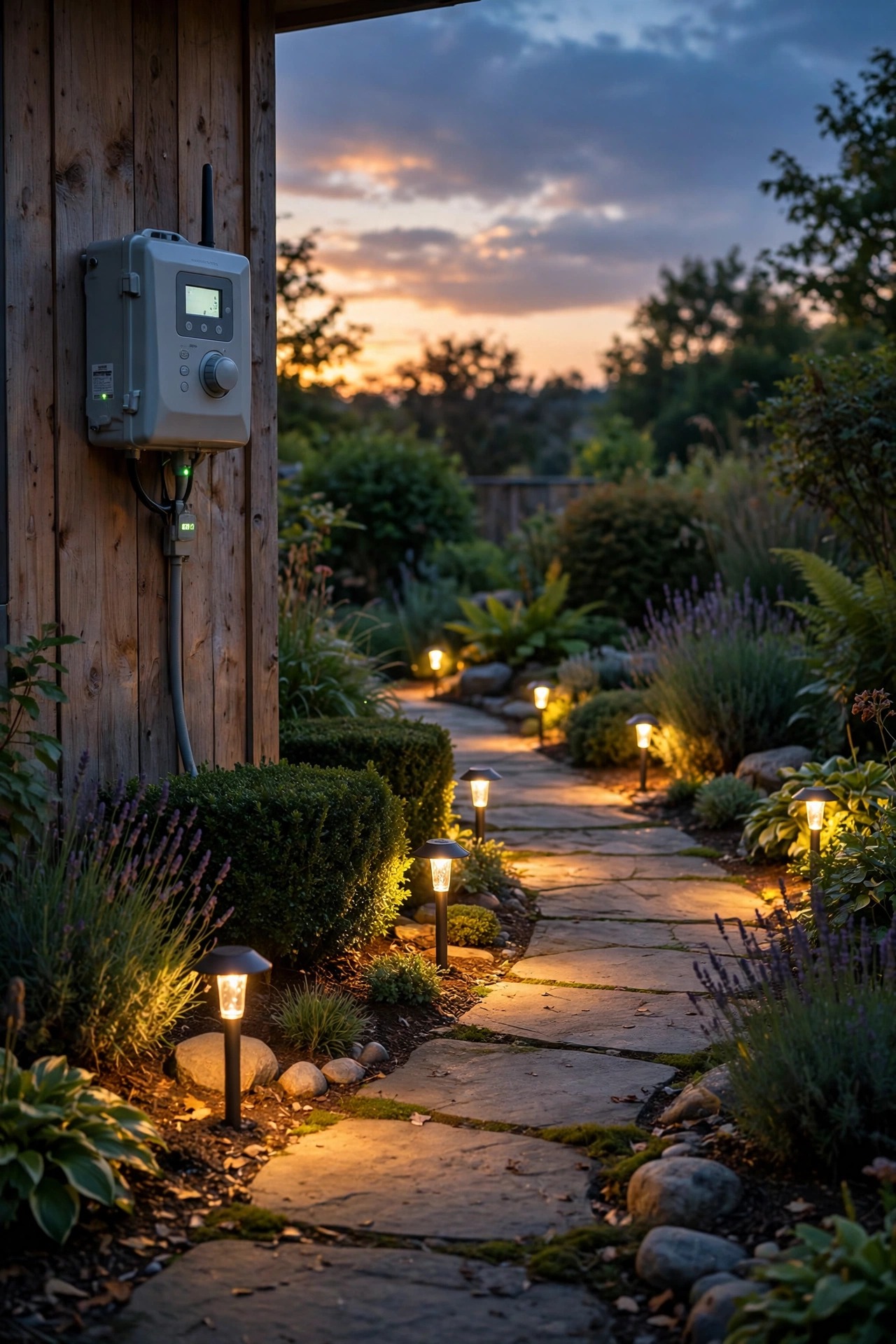
When a schedule is truly tangled, don't patch it — rebuild it. A clean reset takes about ten minutes and beats an hour of forensic button-pressing. Here's the exact sequence I use:
1. Observe first. For one evening, note when the lights actually come on and go off. The offset tells you which mistake you're hunting.
2. Check the mode. Set the timer to AUTO (or TIMER). Confirm override and random/vacation mode are off.
3. Set the clock. Match your phone exactly — time, AM/PM, day, and date including the year on astronomic models.
4. Verify location settings. On astronomic timers, confirm time zone and location preset.
5. Clear every program. Scroll through all slots and zero out anything you didn't personally set this year.
6. Replace the backup battery if it's older than three years or the display ever flashes 12:00 after outages.
7. Enter one simple program. Start minimal: ON about 15 minutes after sunset, OFF at 11 p.m. or your bedtime. Say each time out loud with its AM or PM as you enter it.
8. Double-check the meridiem on both events before saving.
9. Watch one full cycle. Check the yard at the on-time and the off-time the first day; adjust the ON time by 10 minutes either way if it misses dusk.
10. Write it down. Jot the settings and battery date on painter's tape inside the cover. Future you says thanks.
Resist adding extra programs for the first week. One clean schedule that works beats five clever ones that fight.
What It Costs in 2026
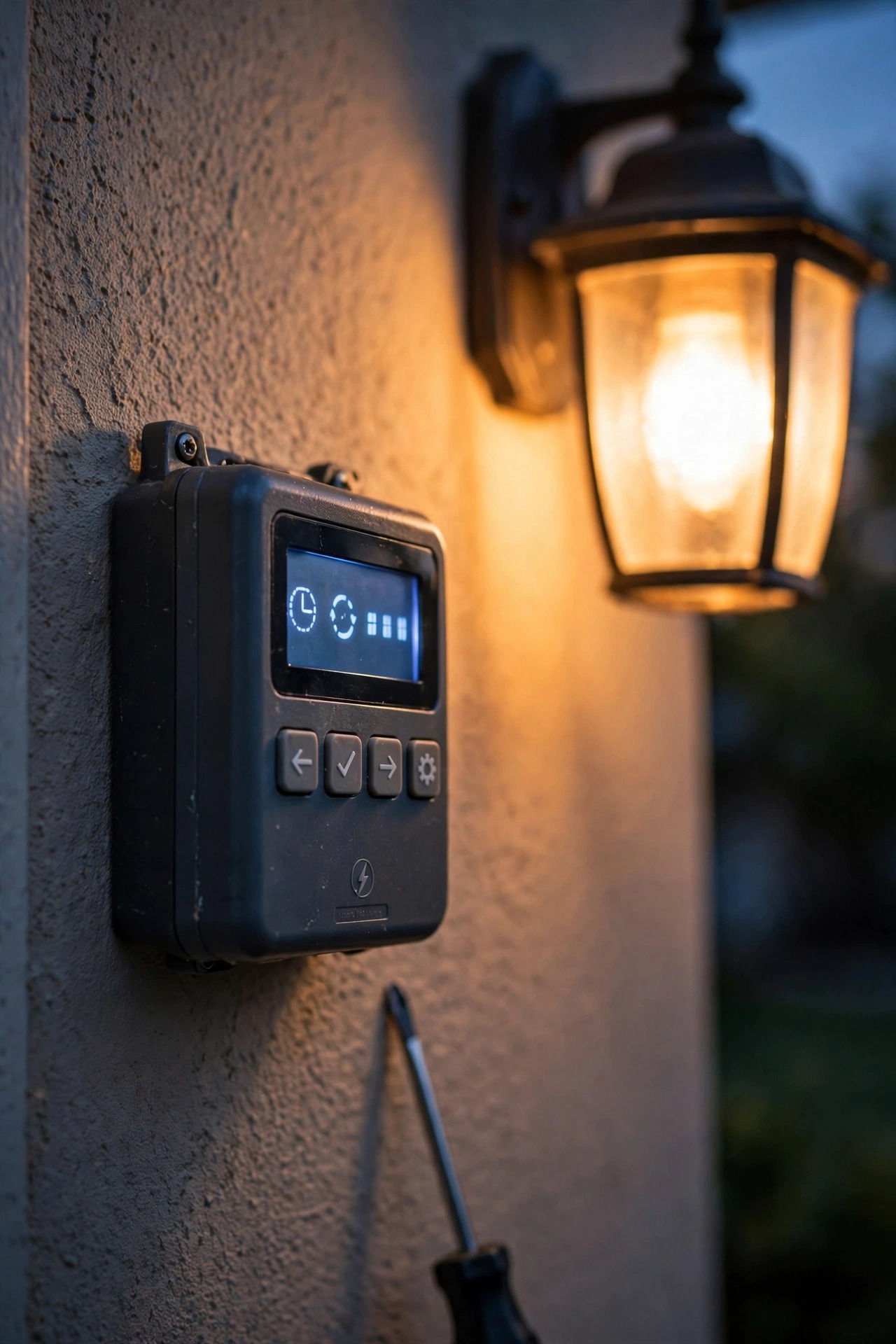
Here's the happy news: most timer schedule problems cost exactly nothing, because they're settings, not parts. Your wallet only comes out when the timer itself is dying or you're upgrading to end the twice-yearly daylight saving dance. A replacement backup battery runs $3 to $8. A basic mechanical plug-in timer costs $10 to $18; a digital plug-in with battery backup, $18 to $30. In-wall digital timers run $25 to $45, and astronomic in-wall models that track sunset automatically are $35 to $60. A smart outdoor plug costs $12 to $25 — I've compared the current crop in my roundup of the best outdoor smart plugs and timers if you're going that route. An electrician to swap an in-wall timer typically charges $125 to $250 for the visit. And the mistake itself isn't free either: a modest 60-watt landscape system burning 12 extra hours a day wastes about 0.72 kWh daily — roughly 12 cents a day at 17 cents per kWh, or about $44 a year. A bigger 100-watt setup wastes closer to $74 a year. All for a tiny AM dot nobody noticed. There's a second, quieter cost too: hours are life for an LED, so a light burning twelve extra hours a day chews through its rated lifespan twice as fast — on a display nobody is even awake or home to enjoy.
A 10-Minute Seasonal Timer Checkup
Once the schedule is right, keeping it right is a ten-minute job four times a year — or honestly, even twice will catch most drift. I do mine at the two daylight saving changes and once at the start of summer and the winter holidays. The routine: compare the timer's clock to your phone and fix any drift; confirm the mode is still AUTO and no override survived a party; scroll every program and evict anything you don't recognize; check the ON time against this month's actual sunset and nudge it 15 minutes if the yard is lighting up in daylight; wipe the photocell sensor if you have one; and glance at the backup battery's tape date so a five-year-old battery never ambushes you mid-storm. That last check pairs naturally with a walk around the yard at dusk — timers, aiming, and one burnt-out bulb all get spotted in the same lap. If you're setting up fresh timers as part of a bigger front-yard refresh, my front yard lighting timer ideas cover placement and layering once the programming behaves. Ten minutes, twice a year, and your lights will never perform for the mail carrier again. Set a recurring reminder on your phone for the two clock-change weekends and the habit becomes impossible to forget, which — after everything in this guide — is rather the point.

Frequently Asked Questions
Why are my lights on during the day but off at night?
That's the fingerprint of a twelve-hour error. Either an AM/PM swap in the program, or a clock that itself is set twelve hours off — it thinks noon is midnight. Check the timer's current time display against your phone first, including the meridiem indicator, then scroll through each program and verify AM/PM on every event. It's a five-minute fix and by far the most common cause.
Why did my timer lose its schedule after a power outage?
Most digital timers protect their memory with a small internal backup battery or capacitor. When that battery dies — typically after three to five years — even a brief outage resets the clock to flashing 12:00 and wipes or defaults the programs. Replace the backup battery, reprogram, and write the battery date on tape inside the cover so you know when it's due again.
Why is my timer off by exactly one hour?
An exact one-hour error almost always traces to daylight saving time. Simple mechanical and digital timers don't adjust themselves, so the March and November changes leave them an hour wrong until you reset them. An astronomic timer that's off by an hour may have its daylight saving setting disabled or its time zone set one zone over — check the setup menu before reprogramming anything.
Should I replace my mechanical timer with an astronomic or smart one?
If your only problem is a programming slip, no — fix the settings for free. An upgrade earns its money if you're tired of twice-yearly adjustments, want sunset-tracking on-times that glide with the seasons, or want app control. Astronomic in-wall timers ($35 to $60) are the set-and-forget sweet spot for most yards; smart plugs ($12 to $25) are cheaper and easier but depend on your Wi-Fi behaving.
Conclusion
Lights glowing at noon feel like a broken system, but they're really just a faithful timer following instructions that went slightly sideways — a swapped AM and PM, a clock nobody's checked since spring, a battery that died quietly in a thunderstorm. The fix is almost always free, fast, and oddly satisfying once you know the short list of usual suspects. Start fresh with one clean program, keep the override in AUTO, and let a ten-minute seasonal checkup handle the rest. Do that, and those lighting timer programming mistakes become a story you tell about the previous homeowner — or, if you're honest like me, about yourself, exactly once. Then browse the rest of the site for fresh ideas to put that perfectly behaved schedule to work.