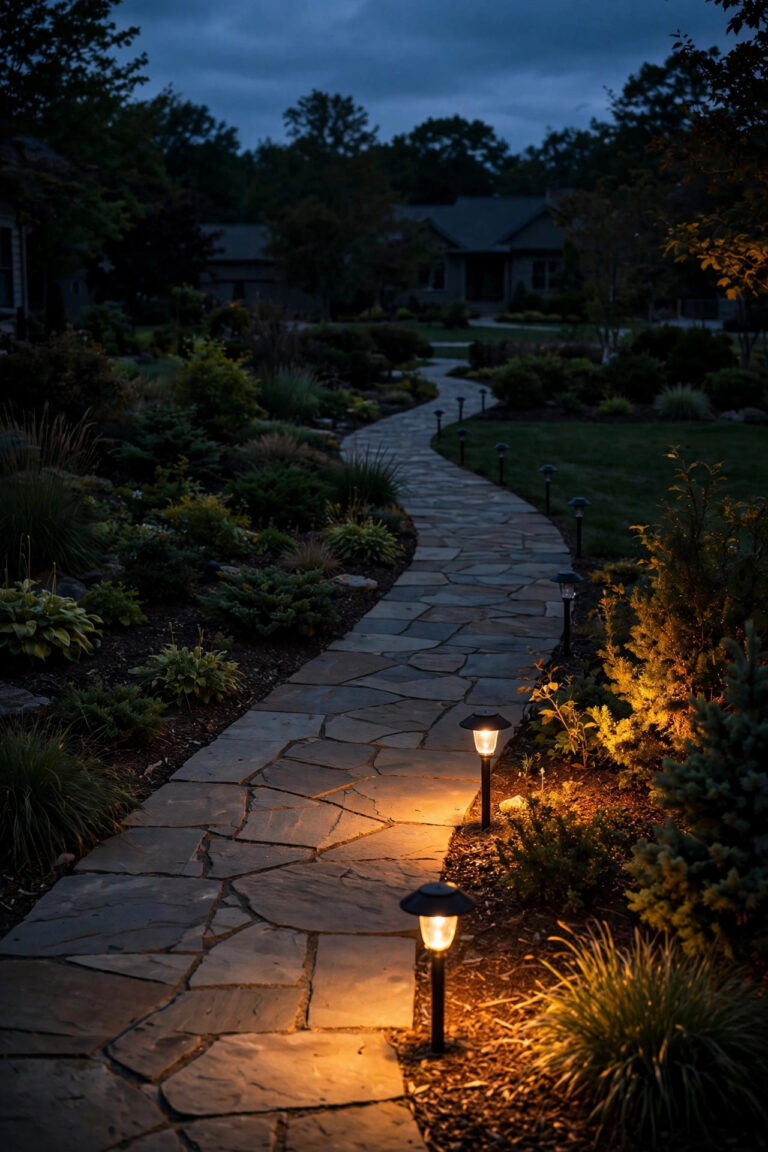
If you have ever set your porch lights to come on at 7:00 PM in September, you already know how that story ends: by December they're blazing away two hours before dark, and by June the yard sits black well past sunset. A fixed clock schedule simply cannot keep up with a sun that shifts a minute or two every single day. That is exactly the problem a good astronomical timer setup solves. An astronomical timer calculates your local sunset and sunrise from the date and your location, then nudges your on and off times a little every day so your lights always meet the dusk. No photocell to get dirty, no schedule to reprogram every season — just lights that come on when the light fades, all year. In this guide I'll walk through the settings that actually matter, a step-by-step first program, the offset trick that makes it feel natural, what these timers cost in 2026, and the handful of mistakes that leave people an hour off without knowing why.

The Short Answer
An astronomical timer turns your lights on at sunset and off at sunrise — or at a fixed bedtime — and recalculates both times daily from the date and your location, so the schedule tracks the seasons automatically. Setup takes about five minutes: set the clock and date, enter your ZIP code or region, switch on automatic daylight saving adjustment, then choose sunset ON with a small offset and the OFF time you prefer. Do that once and you never reprogram for the seasons again. My favorite pattern: on 20 minutes before sunset, off at 11:00 PM.
How an Astronomical Timer Knows When Sunset Is
Inside every astronomical timer is a tiny almanac. When you tell it where you live — by ZIP code, by picking your state and region, or by entering latitude and longitude — it can work out, for any date of the year, the exact minute the sun rises and sets at your house. It stores the solar math for the whole year and simply looks up today's numbers. That is why the schedule creeps a minute or two earlier or later each day, exactly matching the sun, and why two neighbors in different states can buy the same timer and get different sunset times. It also explains the feature that makes these timers feel almost alive: civil twilight. Sunset is the moment the sun slips below the horizon, but the sky keeps glowing for roughly another 20 to 30 minutes. Most of us actually want our lights a little before true sunset, and astronomical timers let you build that in with an offset, which I'll cover shortly. This is a different trick from a photocell, which measures real light and can be fooled by a dirty lens or a shady corner, and from a plain clock timer, which knows nothing about the sun at all. I compare the timer families in more depth in my guide to outdoor lighting timers and automation, but that little built-in almanac is the heart of everything below.

Astronomical Timer Setup: The Five Settings That Matter
However complicated the menu looks, an astronomical timer setup really comes down to five settings, and if these five are right, everything else is decoration. First, the clock and the full date — including the year, because the timer uses the year to know when daylight saving starts and ends. Second, your location: a ZIP code is most precise, latitude and longitude work too, and region-based models ask for something like your state plus north, central, or south. Third, automatic daylight saving adjustment, which must be turned ON or your lights will be an hour off for half the year. Fourth, the program itself: which event switches ON (sunset, sunrise, or a fixed time) and which event switches OFF. Fifth, the mode switch, which has to sit on AUTO or the timer politely ignores everything you just programmed. I tell beginners to write these five on a sticky note and check them in order before touching any advanced feature like random mode or extra programs. Nine times out of ten, a timer that behaves strangely has exactly one of these five wrong — usually the daylight saving toggle or a mode switch bumped to ON during a party and never bumped back.
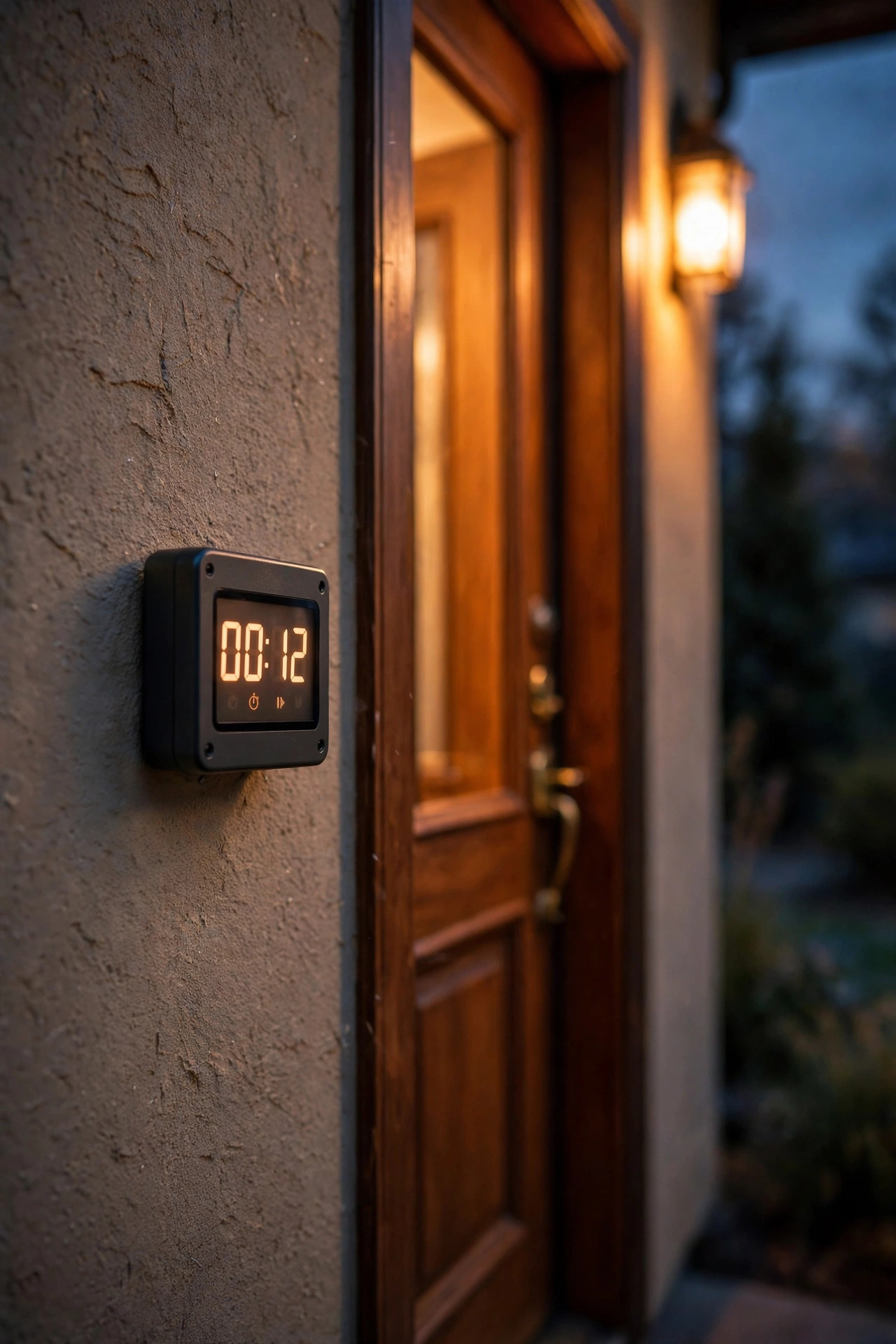
Step-by-Step Astronomical Timer Setup: Your First Sunset-to-Sunrise Program
Here is the exact sequence I use, whether the timer is an in-wall model, a plug-in, or the digital head on a landscape transformer:
1. Make it safe first. For in-wall timers, switch the breaker off and test that the switch is dead before touching wires; plug-in and transformer timers just need the unit unplugged while you work.
2. Set the clock and date. Enter the current time (watch the AM/PM indicator), the month, day, and year.
3. Enter your location. Type in your ZIP code, or select your state and region. Some models also ask for hemisphere — in the US, that's northern.
4. Turn on automatic daylight saving adjustment. It may be labeled DST, AUTO DST, or a little sun icon. This one toggle saves you two corrections a year.
5. Program the ON event. Choose SUNSET, then set an offset of 15 to 30 minutes before sunset — I'll explain why in the next section.
6. Program the OFF event. Either SUNRISE for all-night lighting, or a fixed time like 11:00 PM or midnight, which is what most of us actually want.
7. Check the displayed sunset. The timer will show today's calculated sunset. Compare it with the sunset time on your phone's weather app; they should agree within a few minutes.
8. Set the mode to AUTO and watch the first evening. Stand outside at dusk once, confirm the lights greet the dark, and you're done for the year.
That whole process takes about five unhurried minutes, and steps 3, 4, and 7 are the ones people skip — which is precisely why their schedules drift.
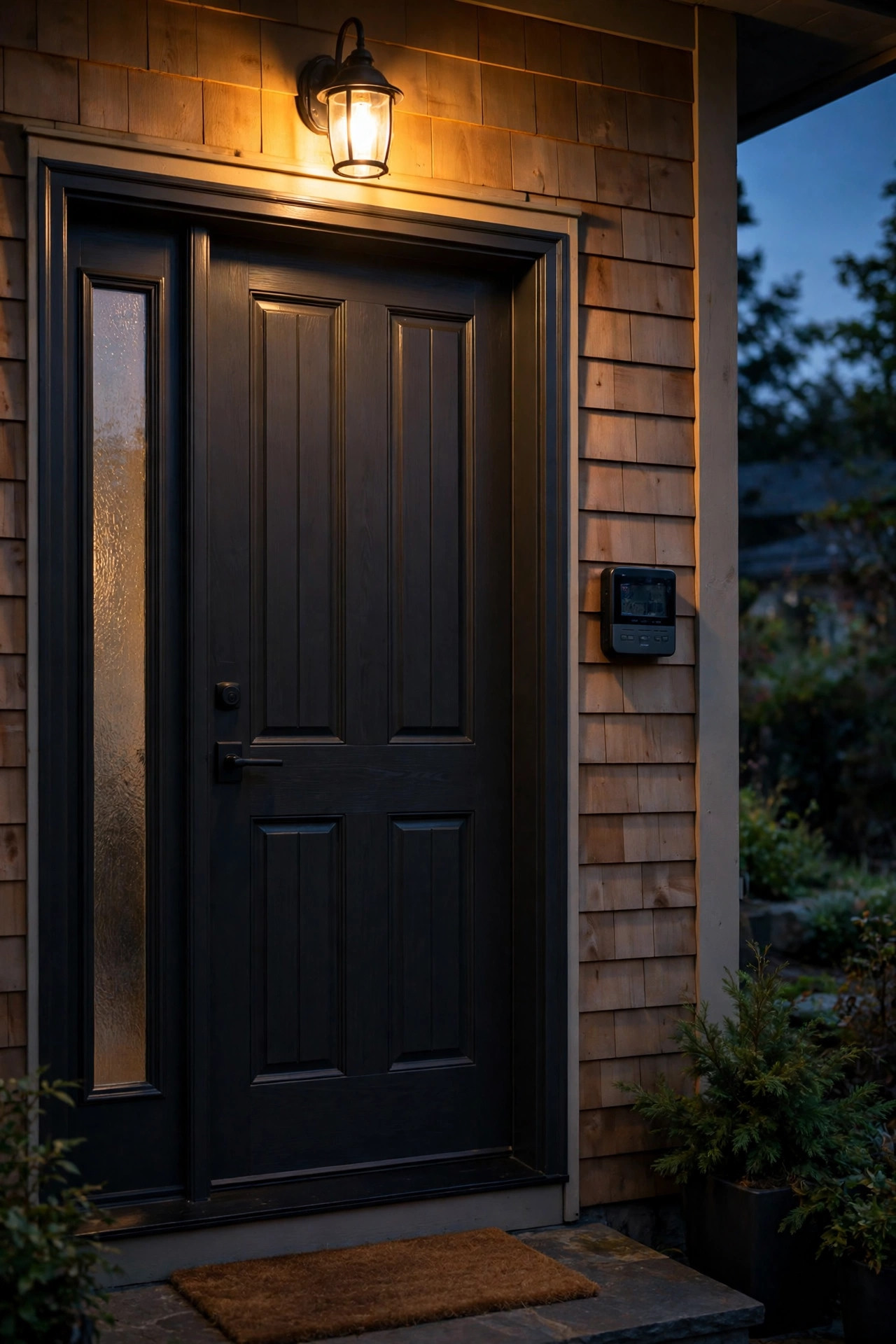
The Offset: Why I Turn Lights On About 20 Minutes Before Sunset
New owners always ask why their lights, set to sunset, still feel late — and the answer is civil twilight. At the moment of sunset the sky is still bright enough to read by; real darkness arrives 20 to 30 minutes later. But the flip side matters too: in those last minutes before sunset, a north-facing porch or a shaded walkway is already gloomy, and that is exactly when someone is coming up your steps with groceries. The offset is the timer's way of splitting the difference: it lets you say "sunset, minus 20 minutes" for the ON event, so lights arrive while there's still a blush of light in the sky but the yard never goes fully dark. On the OFF side, offsets work the same way — sunrise minus nothing is fine for most people, though a "sunrise plus 15" keeps a little security light burning through the greyest part of dawn. My honest recommendation: start with ON at sunset minus 20 minutes, live with it for a week, and adjust by ten minutes either way until dusk in your yard and dusk on the timer feel like the same moment. Southern yards with long twilights usually need less offset; northern yards in December need more.

The Main Types of Astronomical Timers, Compared Honestly
Astronomical timing shows up in four main packages, and the right one depends on what you're controlling. In-wall switch timers replace a standard light switch and run whatever that switch runs — perfect for porch and garage lights on a hardwired switch. Plug-in astronomical timers sit between an outlet and a cord, handy for string lights, holiday displays, and plug-in transformers. Many better landscape transformers now have the astronomical feature built into their digital control head, which is the tidiest option for a whole low-voltage system. And smart switches and plugs borrow the same trick from their phone apps, calculating sunset from your address, which adds remote control but also an account, an app, and a Wi-Fi dependency. Here's how I'd sort them:
| Type | Cost | Effort | Best for |
|---|---|---|---|
| In-wall astronomical switch | $$ | Moderate (breaker + wiring) | Porch and entry lights on a switch |
| Plug-in astronomical timer | $ | Plug and play | String lights, plug-in transformers |
| Transformer with built-in astro timer | $$$ | None extra | Whole low-voltage landscape systems |
| Smart switch or plug (app-based astro) | $$ | App setup + Wi-Fi | Vacation schedules, remote control |
If you're shopping the smart route, my roundup of the best outdoor smart plugs and timers covers what survives weather. For most porches, the humble in-wall model is the sweet spot: invisible, silent, and still working during an internet outage. When in doubt, match the timer to the thing it controls and buy the simplest package that does the job; every extra feature is another setting that can be wrong, and the astronomical math is identical in all four.

Astronomical vs. Photocell vs. Plain Clock: Which Brain Wins?
Each of the three ways to automate a light has a personality. A plain clock timer is the cheapest and the dumbest: it fires at fixed times, which means it's perfect in the week you set it and quietly wronger every week after — by midwinter it's turning lights on in full afternoon sun and off before you get home. A photocell is the opposite personality: it watches the real sky, so it handles storm-dark afternoons beautifully, but it can be fooled. A dirty or cobwebbed lens reads noon as dusk; a porch light's own glow bouncing back at the sensor can switch it off in a loop; deep shade makes it run lamps all day. An astronomical timer sits between the two: it can't see the sky, but it knows the sky's timetable better than any of us, so it never gets fooled by weather or dirt and never drifts with the seasons. My honest rule after years of mixing all three: put astronomical control on anything scheduled — porch, path, landscape zones — and reserve photocells for single dusk-to-dawn security fixtures where "on whenever it's dark" is the entire job description. The one combination to avoid is stacking them, an astronomical timer feeding a photocell fixture, because the two brains argue all night.

Schedules That Look Lived-In: The Patterns I Actually Use
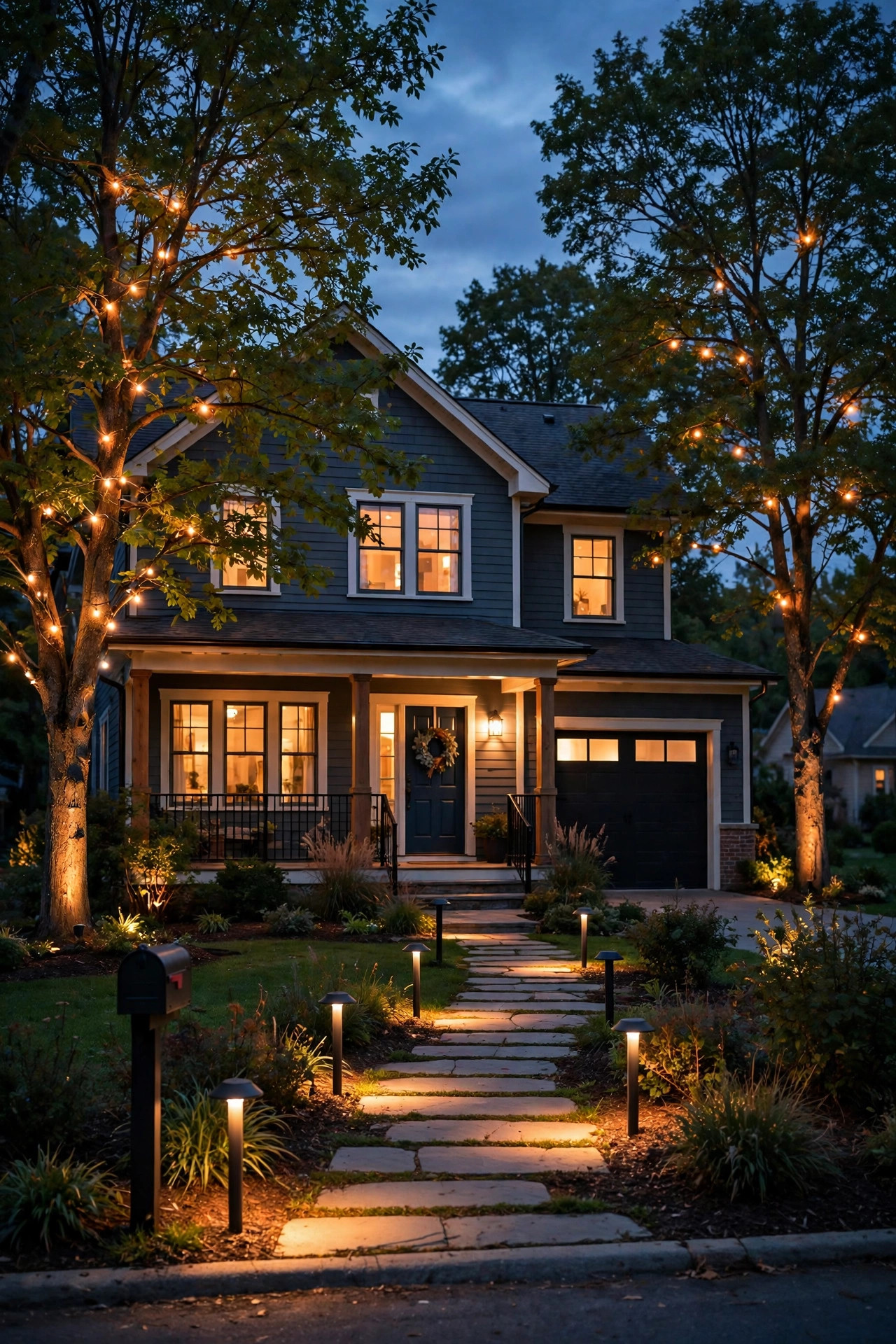
Once the basics behave, the program itself is where a house starts to look loved rather than merely lit. My front zone — porch, entry, and path lights — comes on 20 minutes before sunset and goes off at 11:00 PM, which covers every arrival, dog walk, and delivery without burning lamps at 3 AM. The landscape accent zone, the tree uplights and washes that nobody needs for safety, runs sunset to 10:00 PM on weeknights but gets an extra hour on Fridays and Saturdays, because that's when we're actually outside enjoying it. One small fixture by the garage stays on sunset to sunrise year-round; every home reads safer with a single all-night anchor light, and with an LED it costs pennies. If your timer offers a random or vacation mode, use it when you travel: it jitters the on and off times by up to about 30 minutes so the schedule stops looking like a machine wrote it. Staggering matters too — zones that click off one by one over twenty minutes feel human, while the whole yard blinking out at once feels like a mall closing. I keep a whole notebook of patterns like these in my collection of front yard lighting timer ideas, and honestly, sunset-ON plus a sensible bedtime OFF covers ninety percent of homes beautifully.
What It Costs in 2026
Astronomical control has become a cheap feature, which is the best news in this whole guide. A plug-in astronomical timer runs about $15 to $30. An in-wall astronomical switch timer costs roughly $25 to $60 depending on whether it also dims. A landscape transformer with an astronomical control head built in runs about $120 to $300, though if you're buying the transformer anyway, the astro upgrade over a basic model is often only $20 to $40. A smart switch with app-based sunset tracking is $20 to $50. If wiring an in-wall model isn't your comfort zone, an electrician will swap one in for about $125 to $250 including the service call. The timers themselves sip power — under a watt or two on standby, call it $1 to $2 a year. The savings side is modest but real: a static clock schedule wastes, on average, an hour or more of runtime a day across the year, and on a 60-watt LED landscape load that's roughly 25 to 35 kilowatt-hours, or about $4 to $6 annually at typical US rates — plus the bulb hours you didn't burn. The true payoff isn't the money, though. It's never touching the schedule again.

5 Mistakes That Ruin an Astronomical Schedule
1. Leaving daylight saving adjustment off. The single most common complaint — "my timer is exactly one hour wrong" — is this toggle, twice a year, every year. 2. Entering the wrong location. Picking the wrong region, or a ZIP code from your last house, shifts sunset by 20 to 90 minutes, and the error grows and shrinks with the seasons, which makes it maddening to diagnose. 3. Forgetting the year. A timer set to the wrong year calculates daylight saving dates from the wrong calendar, so it's right most of the year and wrong for a few weeks each spring and fall. 4. Leaving the mode on ON or OFF. Every override — the party, the storm watch, the contractor visit — ends with someone forgetting to return the switch to AUTO, and the "broken" timer is just obeying the override forever. 5. Fighting a photocell. Putting an astronomical timer in charge of a fixture that has its own dusk-to-dawn sensor means the fixture sleeps through the timer's ON event or the timer cuts power the sensor needed; pick one brain per light. I've made mistakes 1 and 4 myself, more than once, and both took longer to find than they should have precisely because everything else was set perfectly. Check the boring five first.

Troubleshooting: One Hour Off, Drifting, or On at Noon
Work by symptom size, the same way I do. If the schedule is off by exactly one hour, it's daylight saving: either the AUTO DST toggle is off, or the clock itself was set during the wrong half of the year. If it's off by a strange amount — 25 minutes, 70 minutes — and the error slowly changes week to week, the location entry is wrong; re-enter the ZIP code and confirm the displayed sunset against your phone. If the lights are on at noon, look at the OFF event: a fixed off-time programmed with AM instead of PM is the usual culprit, or the mode switch isn't on AUTO. If the clock display is flashing after a storm, the backup battery or capacitor gave up during an outage — re-enter the time and date, and know that your location and programs usually survive even when the clock doesn't. If a single zone misbehaves while others behave, the problem is almost never the astronomical math; check that zone's own program, because most timers store several, and an old leftover program from a previous season loves to hide in slot two. Ten minutes with this list fixes nearly every "broken" timer I've ever been called about.

A Two-Minute Check-In, Twice a Year
Astronomical timers ask almost nothing of you, but "almost" isn't "nothing," and I tie my check to the two weekends everyone already notices: the daylight saving changes. Each spring and fall, I glance at the timer's displayed sunset time and compare it with the weather app on my phone — they should match within a few minutes, and if they don't, the location or year setting has gone sideways. While I'm there I confirm the clock reads the right time after the change, which proves the AUTO DST toggle is alive. Every couple of years I replace the little backup battery if the model uses one, always after a flashing-clock incident has reminded me. The season change is also when I rethink offsets: in December, with icy steps and 5 PM darkness, I nudge the front zone to sunset minus 30; in June I pull it back to minus 15, because summer dusk is long and lazy. That's the whole ritual — two minutes, twice a year, while the clocks in the kitchen are getting changed anyway. The visit pairs nicely with swapping the porch bulb and hosing the dust off the path light lenses. Set a phone reminder if you're forgetful; I was, and now the timer and I both remember.
Frequently Asked Questions
Do astronomical timers need Wi-Fi or a phone app?
No — and that's their quiet charm. A standalone astronomical timer carries its sunset almanac inside the device and works happily for years with no internet, no account, and no app. Smart switches and plugs calculate sunset through their apps instead, which adds remote control but stops updating if your Wi-Fi or the service goes down. If you just want lights that track dusk, the standalone kind is the more reliable tool.
Why is my astronomical timer exactly one hour off?
Almost always daylight saving. Either the automatic DST adjustment is switched off, so the schedule never springs forward or falls back, or the clock was originally set an hour wrong and the error only becomes obvious when sunset shifts. Check the DST toggle first, then re-enter the current time, and confirm today's displayed sunset against your phone's weather app — they should agree within a few minutes.
Can an astronomical timer run my whole landscape lighting system?
Yes, and it's one of the best places for one. Many landscape transformers have an astronomical control head built in; otherwise, a plug-in astronomical timer rated for the load can run a plug-in transformer, or an in-wall model can control the outlet the transformer uses. Just confirm the timer's amp and wattage rating covers your transformer's draw, and remember the photocell on some transformers should be disabled so the two don't fight.
Astronomical timer or dusk-to-dawn photocell — which is better for a porch light?
For a porch light on a switch, I choose the astronomical timer every time: predictable, immune to dirt and shade tricks, and able to turn off at 11 PM instead of burning until dawn. A photocell wins on a lone security fixture you truly want on whenever it's dark, including during a black midday thunderstorm. Many porches do best with the timer alone; just don't stack both controls on the same fixture.
Conclusion
A careful astronomical timer setup is the closest thing outdoor lighting has to a set-it-and-forget-it promise: five honest settings — clock and date, location, daylight saving on, a sunset program with a small offset, and the switch left on AUTO — and your lights will meet the dusk in January and June alike, without you ever reprogramming a clock again. Start with the simple pattern, on before sunset and off at bedtime, live with it for a week, and fine-tune the offset until your yard's dusk and your timer's dusk feel like the same moment. Then go browse the rest of the site for your next lighting project — this one is officially done.